Ever feel like your computer’s acting weird? Slowing down for no reason, showing strange messages, or just generally being a pain? There’s a good chance you’ve run into malware. It’s a pretty common problem these days, and understanding what it is, how it works, and how to keep it away is super important for anyone who uses a computer or phone. Think of this as your friendly guide to figuring out this whole malware thing.
Key Takeaways
- Malware is basically any software made to mess with your computer or steal your stuff without you knowing.
- There are tons of different kinds of malware, like viruses that copy themselves, worms that spread on their own, and ransomware that locks your files until you pay.
- These nasty programs can sneak onto your devices through dodgy emails, fake websites, or even infected USB drives.
- You might have malware if your computer suddenly gets really slow, shows weird ads, or your security software stops working.
- The best way to stay safe is to keep your software updated, be careful what you click on, and use good antivirus software.
Understanding The Malware Definition
What Constitutes Malicious Software?
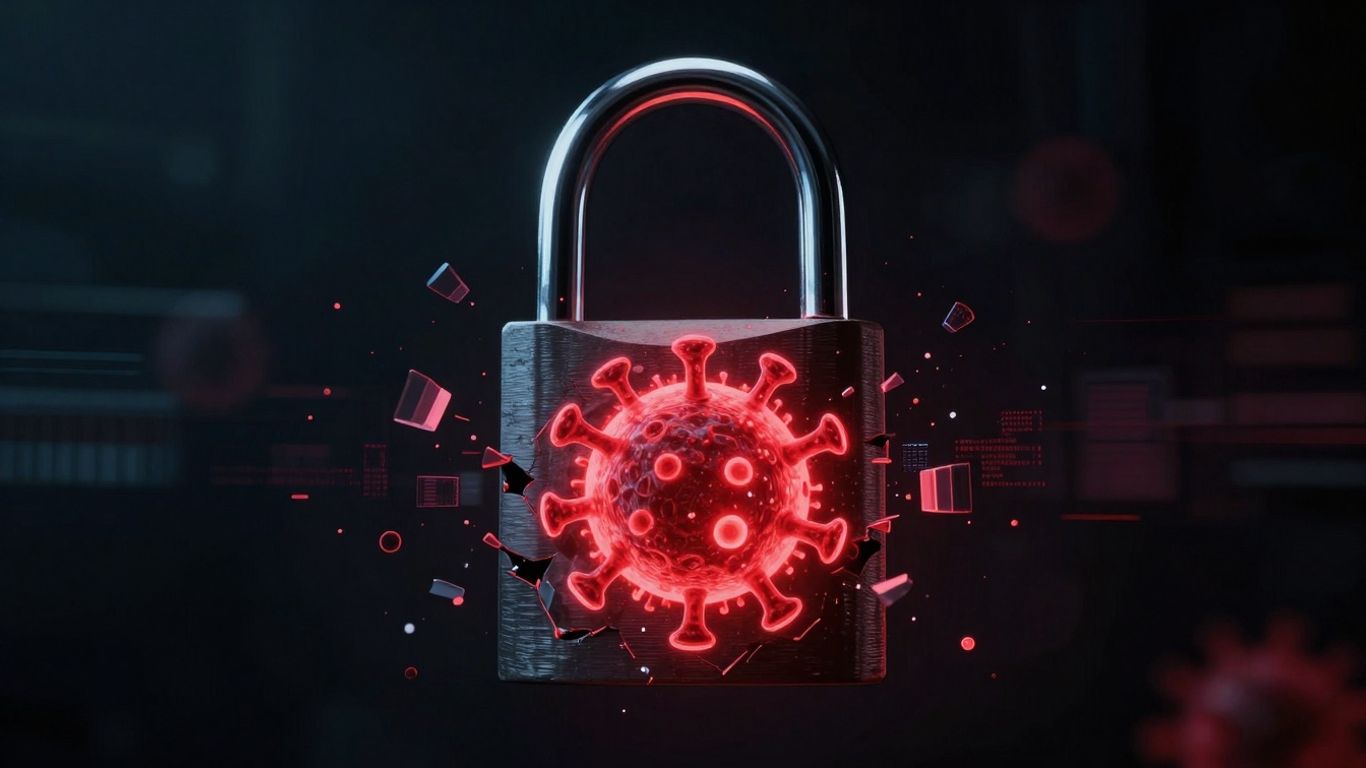
So, what exactly is malware? Simply put, it’s any kind of software designed with the intent to cause harm. This harm can take many forms, from messing up your computer’s normal operations to outright stealing your personal information. It’s software that’s built to do bad things on your computer without you knowing or wanting it to. Think of it as a digital intruder, sneaking into your system to cause trouble.
The Broad Scope of Malware
When most people hear "malware," they might immediately think of computer viruses, the classic troublemakers. But that’s just scratching the surface. Malware is a huge umbrella term that covers a whole bunch of different nasty programs. We’re talking about things like worms that spread on their own, Trojans that pretend to be something helpful but aren’t, ransomware that locks up your files and demands money, and spyware that watches everything you do. It’s a diverse bunch, and they all have their own ways of causing problems. It’s not just Windows machines that are at risk either; Mac and Linux systems can get infected too, as attackers find ways to exploit weaknesses on any platform. Understanding the full range of threats is the first step to protecting yourself.
Motivations Behind Malware Creation
Why do people create this stuff? Usually, it boils down to money or causing disruption. Cybercriminals want to steal your banking details, trick you into paying for fake services, or lock your important files and demand a ransom. Sometimes, it’s about gaining unauthorized access to systems for espionage or to use your computer as part of a larger network of infected machines, often called a botnet. Other times, the motivation might be purely destructive, aiming to cause chaos or make a political statement. Whatever the reason, the outcome is usually bad news for the victim.
Malware is constantly evolving. New versions pop up all the time, changing their tactics to avoid being detected by security software. This means staying protected is an ongoing effort, not a one-time fix.
Here’s a quick look at some common types:
- Viruses: These attach themselves to legitimate files and spread when those files are shared or opened.
- Worms: Unlike viruses, worms can spread on their own across networks without needing to attach to another file.
- Trojans: These disguise themselves as useful software but contain hidden malicious code.
- Ransomware: This type encrypts your data and demands payment to get it back.
It’s important to be aware of these different types to better understand the threats you might face online. Keeping your software updated is a key part of malware prevention.
Common Types Of Malware Explained
Malware isn’t just one thing; it’s a whole family of nasty software designed to mess with your computer or steal your stuff. Think of it like different kinds of pests – some are just annoying, while others can cause serious damage. Understanding these different types is the first step in keeping them away.
Viruses: The Classic Threat
Viruses are probably the oldest type of malware. They’re like biological viruses – they need a host to survive. A computer virus attaches itself to a legitimate program or file. When you run that infected program or open that file, the virus gets activated and starts to spread, often by infecting other files on your computer. They can’t usually spread on their own; they need you to accidentally help them along.
Worms: Self-Replicating Dangers
Worms are a bit more independent than viruses. Instead of needing to attach to another file, worms can replicate themselves and spread across networks all by themselves. They often exploit security weaknesses in operating systems or software to move from one computer to another. Imagine a worm burrowing through your network, infecting everything it touches without you even knowing.
Trojans: Deceptive Infiltrators
Trojans, named after the ancient Greek story of the Trojan Horse, are masters of disguise. They pretend to be legitimate or useful software – maybe a free game, a helpful utility, or an important update. Once you install and run the Trojan, it opens a backdoor for attackers, allowing them to steal your information, install other malware, or take control of your system. They don’t replicate themselves, but their deceptive nature makes them very dangerous.
Ransomware: The Extortionist
Ransomware is all about money. This type of malware encrypts your important files or even locks down your entire computer. Then, it demands a ransom payment, usually in cryptocurrency, to give you back access. It’s a terrifying experience, as your data becomes unusable until you pay up, and even then, there’s no guarantee you’ll get it back. Some ransomware also threatens to leak your stolen data if you don’t pay, a tactic known as double extortion.
The digital world is full of hidden dangers, and malware is a prime example. These malicious programs are constantly evolving, finding new ways to sneak onto your devices and cause trouble. Staying informed about the different kinds of threats is your best defense.
Here’s a quick rundown of how these types differ:
- Viruses: Need a host file, spread when the host is executed.
- Worms: Self-replicating, spread independently across networks.
- Trojans: Disguised as legitimate software, create backdoors.
- Ransomware: Encrypts data and demands payment for its release.
Understanding these common types of malware is a big step towards protecting yourself online. You can find more information on various threats at malware types.
Other Significant Malware Variants
Beyond the more common types like viruses and worms, there are several other kinds of malicious software that can cause a lot of trouble. These often operate with more stealth or have specialized functions that make them particularly tricky to deal with.
Spyware: The Silent Observer
Spyware is designed to watch what you do on your computer without you knowing. It can record your keystrokes, meaning it can capture passwords and credit card numbers as you type them. It also tracks your browsing habits, what you click on, and what information you access. This data is then sent back to the attacker. Think of it like a tiny, invisible spy living in your system, reporting your every move.
Adware: Unwanted Advertisements
Adware’s main goal is to bombard you with advertisements. This can come in the form of pop-up windows, banners, or even redirects to websites you didn’t intend to visit. While some adware is just annoying, it can also be a gateway for other, more dangerous malware. Sometimes, adware also collects data about your browsing habits to serve you more targeted ads, which is a privacy concern.
Rootkits: The Stealthy Invaders
Rootkits are particularly nasty because they are built to hide other malware. They work at a very low level within your operating system, making them incredibly hard to detect and remove. A rootkit can mask the presence of malicious processes, files, or network connections, allowing other malware to operate undetected for long periods. Removing a rootkit often requires specialized tools and can sometimes even necessitate a complete system reinstallation.
Keyloggers: Capturing Every Keystroke
Keyloggers are a type of spyware specifically focused on recording every single key you press on your keyboard. This is a direct way for attackers to steal login credentials, financial details, private messages, and any other sensitive information you type. They can be software-based, running in the background, or even hardware devices that are physically attached to your keyboard cable.
The sophistication of modern malware means that these categories can sometimes overlap. For instance, a Trojan might deliver spyware, or a rootkit might be used to hide a keylogger. Attackers are always looking for new ways to combine these techniques to maximize their impact and evade detection.
Here’s a quick look at how these variants differ:
- Spyware: Focuses on secret observation and data collection.
- Adware: Primarily generates unwanted advertisements.
- Rootkits: Excel at hiding other malicious software.
- Keyloggers: Specifically record keyboard input.
How Malware Infiltrates Systems
So, how does this nasty stuff actually get onto your computer or network in the first place? It’s not like it just magically appears. Malware authors are pretty clever, and they use a bunch of different tricks to sneak their code past your defenses. Understanding these entry points is half the battle in keeping your digital life safe.
Phishing Emails And Malicious Attachments
This is a classic for a reason. You get an email that looks like it’s from your bank, your boss, or some online store you shop at. It might say there’s a problem with your account, or that you’ve won a prize, or that an invoice is attached. The goal is to get you to click a link or open an attachment. Once you click that link or open that file, you might be downloading malware without even realizing it. It’s scary how convincing these can be, even for people who think they’re pretty tech-savvy. Always double-check the sender’s email address and think twice before clicking anything that seems even a little bit off. It’s a good idea to be cautious about emails from unknown senders, and even those from known senders if the content seems unusual. You can find more information on how to spot these scams on security awareness training.
Infected Websites And Drive-By Downloads
Sometimes, you don’t even have to click anything. Just visiting a website that’s been compromised can be enough. These sites might look perfectly normal, but they have hidden code that, when loaded by your browser, can try to exploit weaknesses in your software. This is called a "drive-by download." It’s especially common if you’re running older versions of your browser or plugins that haven’t been updated. It really highlights why keeping all your software patched and up-to-date is so important. Even reputable sites can get hacked, so it’s a constant game of vigilance.
Compromised Software And Exploited Vulnerabilities
Malware can also hitch a ride with legitimate software, especially if you download programs from unofficial sources. Sometimes, software installers come bundled with extra, unwanted programs, and some of those might be malware. Cracked software is a huge no-no for this reason. Beyond that, attackers look for "vulnerabilities" – basically, flaws or bugs in software that they can use to their advantage. If a piece of software has a known vulnerability and hasn’t been patched, attackers can use special tools called "exploit kits" to force malware onto your system through that flaw. This is why software updates aren’t just annoying notifications; they’re often patching up security holes.
Removable Media And Insider Threats
Don’t forget about good old USB drives, external hard drives, or even SD cards. If a device like a USB stick has been infected with malware, plugging it into your computer can transfer that infection. This is a common way malware spreads in workplaces, especially if employees move infected devices between their work and personal computers, or if they’re used in a supply chain attack. While less common, sometimes the threat can come from within an organization. An employee, either intentionally or unintentionally, might introduce malware into the system. Having clear policies about using removable media and educating employees about the risks are key here.
Recognizing A Malware Infection

So, how do you know if your computer has been hit by one of these digital nasties? It’s not always obvious, but there are definitely some red flags to watch out for. Think of it like noticing your car is making a weird noise – you might not know exactly what’s wrong, but you know something isn’t right.
Sudden Performance Degradation
Is your computer suddenly moving at a snail’s pace? Programs taking forever to open, or your system freezing up unexpectedly? While old hardware can certainly cause slowdowns, a drastic and unexplained drop in performance is a common sign that malware is hogging your system’s resources. It’s like trying to run a marathon after eating a huge, heavy meal – you’re just not going to move efficiently.
Unexpected Pop-Ups and System Behavior
If you’re suddenly bombarded with pop-up ads, even when you’re not browsing the web, or if your browser keeps redirecting you to strange websites, that’s a big clue. Sometimes, malware can even change your homepage or search engine without your permission. It’s like having someone constantly interrupting your conversation with random, unwanted messages.
Unusual Network Activity
Malware often needs to ‘phone home’ to its creators or download more malicious components. If you notice a significant spike in your internet activity, especially when you’re not actively using the internet for anything demanding, it could be a sign of infection. This is especially true if you see large amounts of data being sent out from your computer.
Disabled Security Software
This is a really concerning one. Some sophisticated malware actively tries to disable your antivirus software, firewall, or other security measures. If you find that your security programs are turned off and you can’t seem to turn them back on, it’s a strong indicator that something malicious is at play.
It’s important to remember that not every glitch or slowdown is malware. Sometimes, legitimate software updates can cause temporary issues, or hardware can simply start to fail. However, if you notice a pattern of several of these symptoms appearing together, it’s definitely time to investigate further and run a thorough scan.
Strategies For Malware Prevention
Preventing malware is way better than dealing with the mess after it gets in. It’s like fixing a leaky faucet before it floods your kitchen – much less hassle. The good news is, you don’t need to be a cybersecurity wizard to put up a solid defense. It mostly comes down to being smart and a little bit diligent.
Maintain Up-To-Date Software
Think of software updates like getting your car’s oil changed. Sure, you can skip it for a while, but eventually, it’s going to cause problems. Developers release updates not just to add new features, but to fix security holes that bad actors could exploit. These vulnerabilities are like unlocked doors for malware. So, make sure your operating system, web browser, and any other applications you use are set to update automatically whenever possible. If not, make it a habit to check for and install updates regularly. It’s a simple step that closes a lot of potential entry points.
Practice Safe Browsing Habits
This is where you, the user, play a big role. Be super careful about what you click on. Phishing emails are still a huge problem; they look like they’re from a friend or a company you trust, but they’re actually trying to trick you into clicking a bad link or opening a nasty attachment. If an email or message seems even a little bit off, don’t click it. Better yet, if you’re unsure about a request, contact the sender through a different, known-good channel to verify. Also, watch out for those pop-up ads that claim your computer is infected and tell you to click for a fix. These are often fake and can lead you straight to malware.
Utilize Strong Antivirus Software
Having a good antivirus or anti-malware program is like having a security guard for your computer. It constantly scans for threats, both known and new, and can often block malware before it even gets a chance to install. But remember, these programs aren’t magic bullets. They need to be kept updated too, so they can recognize the latest threats. Think of it as giving your security guard the latest intel. Also, don’t rely on just one tool; a layered approach is always best.
Be Wary Of Suspicious Communications
This ties into safe browsing, but it’s worth repeating. If you get an email, text message, or social media message that asks for personal information, seems too good to be true, or has a sense of urgency, pause. Legitimate organizations rarely ask for sensitive data via email or text. Always question the source. If a link looks weird or an attachment has an unusual file type, steer clear. It’s better to be a little overly cautious than to regret a moment of inattention. Taking a few extra seconds to verify can save you a world of trouble down the line.
Malware prevention isn’t a one-time fix; it’s an ongoing process. It involves a combination of technical tools and smart user behavior. By staying informed and vigilant, you significantly reduce your risk of falling victim to malicious software.
Wrapping Up: Staying Safe Online
So, we’ve gone over what malware is and how it can mess with your digital life. It’s not just a problem for big companies; anyone using a computer or phone can run into these nasty programs. Remember, staying aware is half the battle. Keep your software updated, be careful about what you click on or download, and use good security software. It might seem like a lot, but taking these simple steps really helps keep your devices and your personal information out of the wrong hands. Don’t wait until something bad happens; make these practices a habit now.
Frequently Asked Questions
What exactly is malware?
Malware is basically bad software. Think of it like a digital germ that’s designed to mess with your computer or phone. It can steal your personal information, mess up your files, or just make your device act weirdly. It’s a catch-all term for any program that does harm without you knowing.
Is a computer virus the same thing as malware?
Not exactly. Malware is the big, overall category for all harmful software. A computer virus is just one *type* of malware. Viruses are known for attaching themselves to other files and spreading like a cold. But there are many other kinds of malware, like ransomware or spyware, that work differently.
How can I tell if my computer has been infected with malware?
Your computer might start acting strange. It could suddenly become super slow, show a lot of annoying pop-up ads, or crash for no reason. You might also notice weird things happening with your internet connection, or your security software might suddenly stop working. These are all red flags that something isn’t right.
What are the most common ways malware gets onto my devices?
A lot of times, malware sneaks in through emails that look suspicious, especially if they have attachments you weren’t expecting. Clicking on links from unknown websites or downloading files from untrustworthy sources are also big culprits. Even using USB drives that have been plugged into other computers can be a risk.
What’s the main goal of people who create malware?
Most of the time, it’s about money or causing trouble. Some hackers want to steal your passwords or bank details to make money. Others use something called ransomware to lock up your files and demand payment to get them back. Sometimes, it’s just about causing chaos or getting access to systems for other bad purposes.
What’s the best way to avoid getting malware in the first place?
The best defense is to be careful and stay updated! Always keep your software, like your operating system and apps, up-to-date because updates often fix security holes. Be super cautious about clicking on links or opening attachments in emails, especially if you don’t know the sender. Using good antivirus software and running regular scans is also a must.