
So, you’re out and about, maybe grabbing a coffee or waiting at the airport, and you see that free Wi-Fi. It’s super convenient, right? But here’s the thing: while it’s great for staying connected, public Wi-Fi security can be a bit of a minefield. Hackers love these open networks because they’re often easy targets. We’ll go over some simple ways to keep your connection safe and your personal stuff private when you’re using Wi-Fi that isn’t your own.
Key Takeaways
- Public Wi-Fi networks are convenient but can be risky because they’re often unsecured, making them easy targets for hackers.
- Using a Virtual Private Network (VPN) encrypts your internet traffic, creating a secure tunnel for your data even on public networks.
- Always check for HTTPS on websites, indicated by a padlock icon, before entering any sensitive information to ensure a secure connection.
- Disable features like automatic network connections, file sharing, and Bluetooth when not in use to reduce your device’s vulnerability.
- Be aware of your surroundings to prevent ‘shoulder surfing’ and verify the legitimacy of Wi-Fi networks to avoid fake hotspots.
Understanding Public Wi-Fi Risks
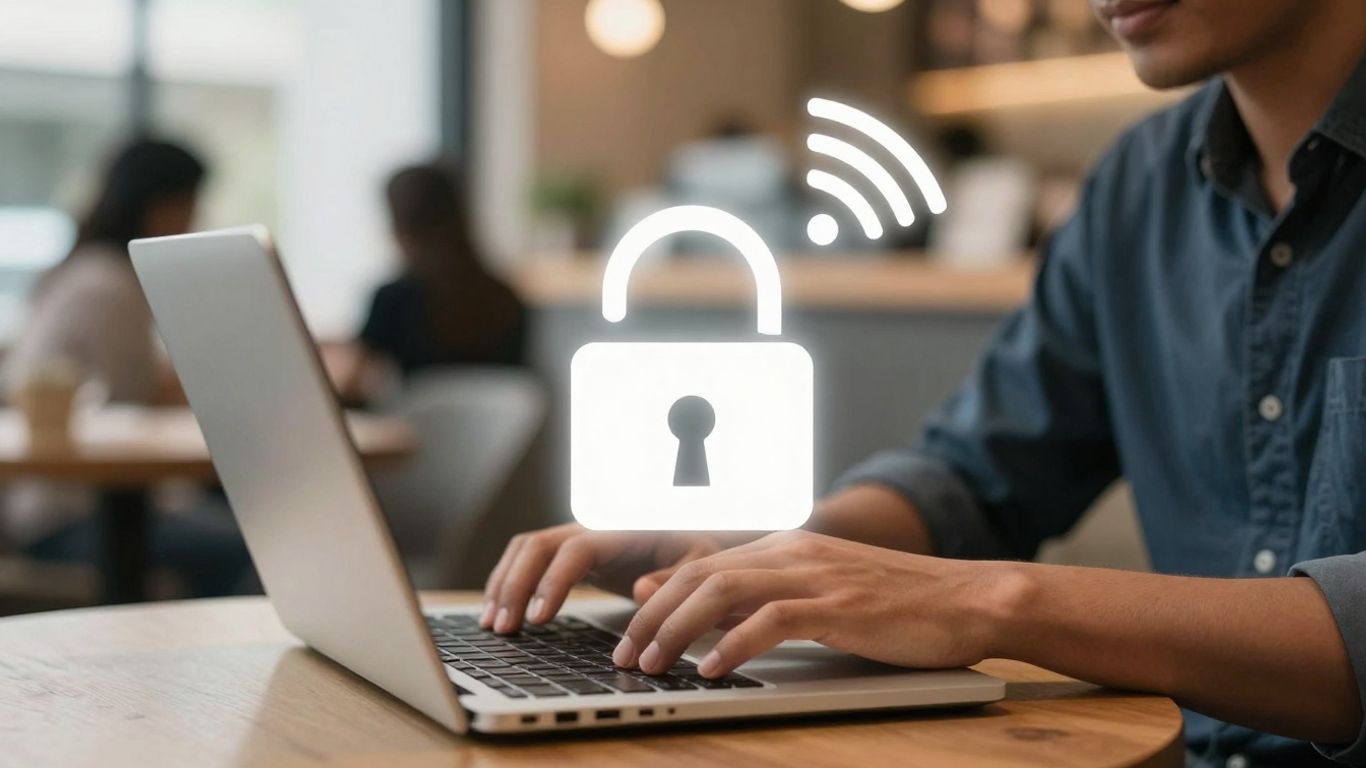
So, you’re out and about, maybe grabbing a coffee or waiting for a flight, and you see that "Free Wi-Fi" sign. It’s super tempting, right? We’ve all been there. It’s like a little convenience oasis in our busy lives. But here’s the thing: that free connection can sometimes come with a hidden cost, and it’s not about money. These open networks are often a playground for folks with bad intentions looking to snag your personal information.
The Allure and Danger of Free Hotspots
These public Wi-Fi spots are everywhere now – cafes, airports, libraries, you name it. They’re great because you don’t need a password or any special login to hop on. That’s exactly what makes them attractive to hackers, too. Without any security checks, it’s easier for them to get onto the same network as you. Think of it like walking into a crowded room where everyone can hear your conversations. If you’re not careful, what you’re typing or looking at could be overheard by the wrong ears.
How Hackers Exploit Unsecured Networks
One common trick hackers use is something called a "man-in-the-middle" attack. Basically, they position themselves between your device and the Wi-Fi hotspot. So, when you think you’re sending information directly to the internet, you’re actually sending it through the hacker first. They can then see everything: your emails, login details for websites, maybe even credit card numbers if you’re not paying attention. It’s like a digital eavesdropper, just sitting there and watching.
It’s important to remember that many hackers aren’t necessarily targeting you specifically. They’re often just looking for the easiest way to get data, and an unsecured public Wi-Fi network is often a wide-open door.
The Threat of Malware Distribution
Beyond just stealing information, these networks can also be used to spread nasty software, known as malware. If your device is set up to share files automatically, a hacker could potentially plant infected programs onto your computer without you even knowing. Sometimes, they get really clever and might even make a fake pop-up appear, pretending to be an important software update. Click on that, and boom – you’ve just invited malware onto your system.
Here’s a quick rundown of what can go wrong:
- Data Theft: Hackers can intercept your login credentials, financial information, and private messages.
- Identity Theft: Stolen personal details can be used to impersonate you.
- Device Infection: Malware can be installed, leading to data loss or your device being controlled remotely.
- Fake Hotspots: You might connect to a network that looks legitimate but is actually set up by a hacker to steal your data (often called "evil twins").
Essential Security Measures for Public Wi-Fi
So, you’ve found a free Wi-Fi spot. Great! But before you start scrolling through cat videos or checking your work emails, let’s talk about making sure you don’t end up regretting it. Public Wi-Fi is like a free buffet – convenient, but you gotta watch what you’re putting on your plate. Here are some basic steps to keep your digital self safe.
Utilize a Virtual Private Network (VPN)
Think of a VPN as a private tunnel for your internet traffic. When you connect to public Wi-Fi without one, your data is basically sent out in the open. Anyone snooping around on the same network could potentially see what you’re doing. A VPN encrypts everything you send and receive, making it look like gibberish to anyone trying to intercept it. It’s a really solid way to keep your online activities private, especially if you’re hopping between different networks.
Ensure Secure Website Connections with HTTPS
When you visit a website, look at the address bar. See that little padlock icon and the letters "https://" at the beginning? That means the connection between your device and the website is encrypted. It’s like sending a letter in a sealed envelope instead of a postcard. Always try to connect to websites that use HTTPS, especially when you’re logging in or sharing any kind of personal information. Most modern browsers will warn you if a site isn’t secure, but it’s good practice to check yourself.
Disable Automatic Network Connections
Your phone or laptop might be set to automatically connect to any Wi-Fi network it finds. This sounds handy, but it can be a real security risk. You could accidentally connect to a fake network set up by a hacker, thinking it’s the real deal. It’s better to manually choose the network you want to connect to each time. You can usually turn off this auto-connect feature in your device’s Wi-Fi settings. And after you’re done using a public network, consider telling your device to "forget" it so it doesn’t try to reconnect later without your say-so.
Fortifying Your Device on Public Networks
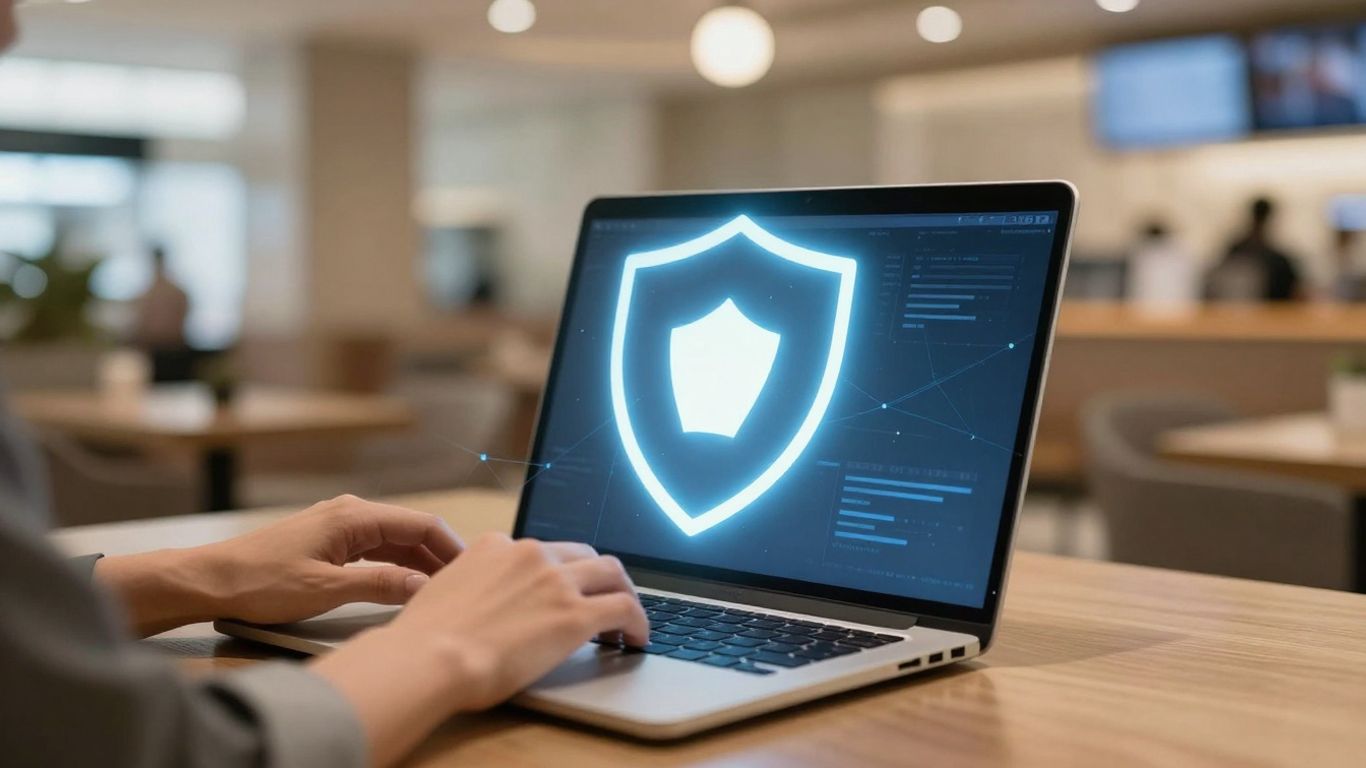
So, you’ve decided to connect to that free Wi-Fi at the coffee shop. Great for convenience, but let’s talk about making sure your device isn’t an open invitation for trouble. It’s not just about the network itself; what you do with your device while connected matters a lot. Think of it like leaving your front door unlocked – you wouldn’t do that at home, so why do it on a public network?
Turn Off File and Network Sharing
When you’re on a public network, the last thing you want is for your device to be broadcasting that it has files or printers to share. This is a huge red flag for anyone snooping around. Most operating systems have a setting that automatically turns off sharing when you connect to a public network, but it’s always good to double-check. If you’re on Windows, look for the ‘Network and Sharing Center’ and make sure file and printer sharing is off. For Mac users, head to ‘System Preferences’ and then ‘Sharing’ to uncheck any sharing options. And don’t forget about features like AirDrop – make sure that’s set to ‘No One’ discoverable.
- Windows: Network and Sharing Center -> Change advanced sharing settings -> Turn off file and printer sharing.
- macOS: System Preferences -> Sharing -> Uncheck all sharing services.
- AirDrop (macOS/iOS): Control Center -> AirDrop -> Set to ‘No One’.
Keep Your Wi-Fi Functionality Disabled
This one might seem obvious, but it’s surprisingly easy to forget. If you’re not actively using the internet, just turn off your Wi-Fi. Seriously. Many devices are set to automatically connect to known or open networks. While convenient at home, this can be a real problem in public. You might connect to a network without even realizing it, and if that network isn’t secure, you’ve just opened yourself up to risks. It’s a simple step, but turning off Wi-Fi when you don’t need it significantly reduces your exposure.
Leaving your Wi-Fi on when you’re not using it is like leaving a window open in your house. You’re just making it easier for someone to peek in or even climb through.
Enable Your Firewall Protection
Your firewall is like a security guard for your device. It monitors incoming and outgoing network traffic and decides whether to allow or block specific traffic based on a defined set of security rules. When you’re on a public network, this guard is especially important. It can help prevent unauthorized access to your device and block malicious software from getting in. Most computers come with a built-in firewall, but you need to make sure it’s actually turned on and active. Don’t assume it’s on by default; take a moment to check your system’s security settings and confirm that your firewall is running.
Advanced Public Wi-Fi Security Practices
Verify the Legitimacy of Wi-Fi Networks
When you’re out and about, it’s easy to spot a "Free Wi-Fi" sign and just connect. But hackers can set up fake networks that look just like the real deal. They might name it something like "CoffeeShop_Guest" when the actual network is "CoffeeShop Guest". Connecting to one of these fake networks is like handing over your keys to a stranger. They can then watch everything you do online or even trick you into downloading malware. Always double-check the network name with an employee if you’re unsure. If a network name seems a bit off, or if it’s the only one available and you weren’t expecting it, it’s probably best to steer clear.
Implement Multi-Factor Authentication
Even if a hacker manages to snag your password from a public Wi-Fi connection, multi-factor authentication (MFA) adds another layer of protection. This means that besides your password, you’ll need a second form of verification, like a code sent to your phone or a fingerprint scan, to log into your accounts. It’s like having a deadbolt on your door even if someone picks the lock.
Here’s why MFA is so helpful:
- Adds a critical security layer: It makes it much harder for unauthorized users to access your accounts, even if they have your password.
- Protects against credential stuffing: Hackers often try passwords stolen from one site on many others. MFA stops this cold.
- Secures sensitive accounts: Prioritize enabling MFA on email, banking, and social media accounts.
Maintain Device and Software Updates
Software updates aren’t just about new features; they often include important security patches that fix vulnerabilities hackers could exploit. If you’re connecting to public Wi-Fi, make sure your operating system, web browser, and any other applications you use are up-to-date. This is especially true for your antivirus software. Keeping everything current is a simple but effective way to close potential security gaps.
Think of your software like a house. Updates are like fixing broken windows or reinforcing weak doors. If you don’t do them, you’re leaving easy entry points for unwanted visitors.
Protecting Your Data in Public Spaces
Even with all the technical stuff like VPNs and firewalls, there are still some basic things you can do to keep your information safe when you’re out and about using Wi-Fi. It’s not just about the network itself, but also about what’s happening right around you.
Be Wary of "Evil Twin" Hotspots
This is a sneaky one. Hackers can set up fake Wi-Fi networks that look just like the real deal, often with names that are super close to the legitimate ones. Think "CoffeeShopFreeWiFi" versus "CoffeeShop_FreeWiFi". They want you to connect to their network so they can snoop on everything you do. Always double-check the network name before you connect, and if you’re unsure, ask an employee at the establishment for the correct name. Sometimes, it’s better to just use your cellular data if you can’t be 100% sure.
Guard Against Shoulder Surfing
This one’s pretty straightforward, but easy to forget. When you’re using your phone or laptop in a busy place, people can literally just look over your shoulder and see what you’re doing. This is especially risky if you’re typing in passwords or looking at personal information. Try to position yourself so your screen is angled away from common walkways, or use a privacy screen if you have one. It might feel a little awkward, but it’s worth it.
Avoid Sensitive Transactions
This is probably the most important rule. If you’re on public Wi-Fi, just don’t do it. Don’t log into your bank account, don’t make any online purchases, and definitely don’t enter any credit card details. Even with HTTPS, there’s still a risk, and it’s just not worth the potential headache. If you absolutely have to do something important, wait until you’re on a trusted network at home or work, or use your phone’s data connection.
Wrapping Up: Staying Safe Out There
So, yeah, public Wi-Fi is super handy, but it’s not exactly Fort Knox. Hackers are always looking for an easy way in, and these free networks can be like an open door for them. The good news is, you don’t have to swear off coffee shop internet forever. Just by doing a few simple things, like turning off sharing when you’re not using it, keeping your Wi-Fi off when you don’t need it, and maybe using a VPN if you’re really worried, you can make yourself a much harder target. It’s all about being a little bit aware and taking those small steps. Stay safe out there!
Frequently Asked Questions
What’s the main danger of using free Wi-Fi at places like coffee shops?
The biggest worry is that hackers can easily spy on what you’re doing online. They can set up fake Wi-Fi spots that look real, or they can sneak onto the same public network you’re using. Once they’re in, they might be able to steal your passwords, bank details, or other private information.
How can a VPN help me stay safe on public Wi-Fi?
Think of a VPN as a secret tunnel for your internet activity. When you use a VPN, all the information you send and receive gets scrambled, or encrypted. This makes it super hard for anyone snooping on the public Wi-Fi network to understand what you’re doing, even if they manage to intercept it.
What does HTTPS mean, and why is it important?
HTTPS is a way for websites to make sure your connection is secure. When you see ‘https’ at the beginning of a website address, and often a little padlock symbol, it means the information you exchange with that site is encrypted. It’s a good sign that the website is trying to protect your data, especially if you’re logging in or making purchases.
Should I turn off Wi-Fi on my device when I’m not actively using it?
Yes, it’s a smart move! If your Wi-Fi is always on and set to connect automatically, your device might join a risky network without you even realizing it. Turning it off when you don’t need it prevents your device from connecting to unknown or potentially harmful networks.
What is ‘shoulder surfing,’ and how can I prevent it?
Shoulder surfing is when someone looks over your shoulder to see what you’re typing or what’s on your screen. To avoid this, be mindful of who is around you when you’re using your device in public. Try to position yourself so that people can’t easily see your screen, and be extra careful when entering sensitive information.
Why is it important to keep my device’s software updated?
Software updates often include security fixes that patch up weaknesses hackers could exploit. If your device’s software is old, it might have security holes that make it easier for hackers to get in and steal your information or install harmful programs, especially when you’re connected to public Wi-Fi.