
College life is exciting, full of new experiences and learning. But with all that online activity, from submitting assignments to connecting with friends, comes a need to be smart about staying safe online. Criminals don’t really care if you’re just starting out or finishing up your degree; if you’re online, you’re a potential target. So, let’s talk about some simple ways to boost your student cyber security and keep your digital life protected.
Key Takeaways
- Create strong, unique passwords for every account and use a password manager to keep track of them. Never share your passwords.
- Be suspicious of unexpected emails, texts, or messages asking for personal info or urging quick action. Always check the sender and go directly to official websites if unsure.
- Keep your devices and software updated regularly. These updates often fix security holes that hackers can use.
- Be mindful of what you share on social media and adjust your privacy settings. Also, be cautious when using public Wi-Fi for sensitive tasks like banking.
- Utilize multi-factor authentication (MFA) whenever possible. It adds a critical extra layer of security to your accounts.
Securing Your Digital Identity
Your online accounts are like your digital home address and mailbox. Keeping them secure is super important, especially when you’re a student. It’s not just about protecting your grades or your bank account; it’s about keeping your whole online life safe from people who want to cause trouble.
Crafting Strong, Unique Passwords
Okay, let’s talk passwords. We all know we’re supposed to have strong ones, but what does that actually mean? It means ditching "password123" or your birthday. Think long, think random. A good password is like a secret code that’s really hard to crack. The longer and more random your password, the safer you are. Aim for at least 16 characters, mixing uppercase and lowercase letters, numbers, and symbols. Trying to remember a bunch of these can feel impossible, right?
Leveraging Password Managers
This is where password managers come in handy. Instead of trying to remember dozens of complex passwords, you only need to remember one master password for the manager itself. The manager then creates and stores all your other unique, strong passwords for different websites and apps. It’s a game-changer for staying organized and secure. Many universities even offer access to password managers for free to students, so definitely check that out. It makes managing your online security so much simpler.
Enabling Multi-Factor Authentication
Think of multi-factor authentication (MFA) as adding a deadbolt to your digital door. Even if someone manages to steal or guess your password, they still can’t get into your account without a second form of verification. This is usually something like a code sent to your phone or an approval through an app. It might seem like an extra step, but it’s one of the most effective ways to stop unauthorized access. Make sure to turn it on for all your important accounts, especially your school email and banking.
Navigating Online Communications Safely
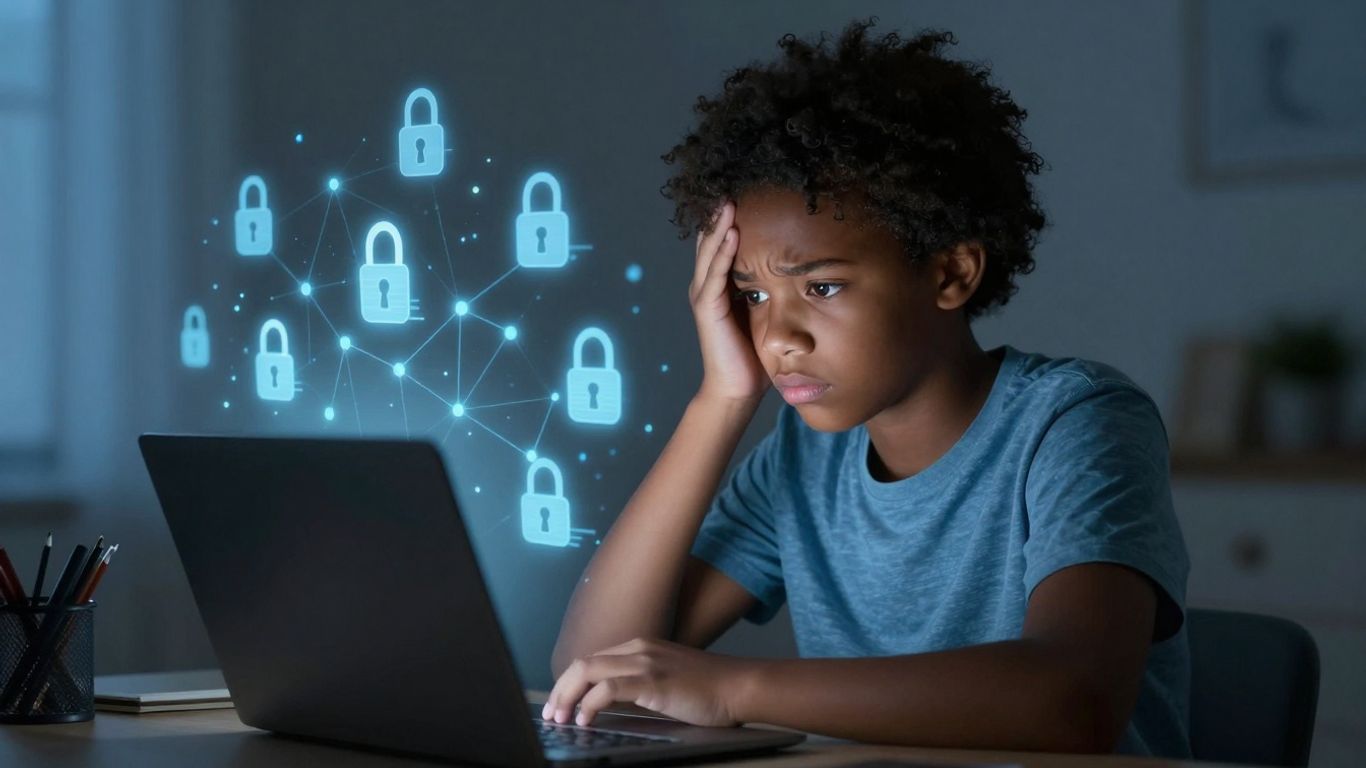
It’s easy to get caught up in the fast pace of online life, but staying aware of how you communicate digitally is super important. Think about it: a lot of our interactions, from chatting with friends to getting important school updates, happen online. This means we need to be smart about what we see and what we click.
Recognizing Phishing Attempts in Emails
Emails can be tricky. Scammers often send messages that look like they’re from a real company or person, trying to trick you into giving up personal info. They might say there’s a problem with your account or that you’ve won something. Always look closely at the sender’s email address; often, a single misspelled letter can give it away. If an email asks for sensitive details or seems urgent, it’s best to be suspicious. Instead of clicking a link in the email, go directly to the company’s website yourself to check if there’s an issue. You can also report suspicious emails to your university’s IT department.
Identifying Scams via Texts and Direct Messages
It’s not just emails. Scammers are also active on text messages and social media direct messages. You might get a text saying your package is delayed and needs a small payment to be released, or a DM from someone claiming to be a long-lost relative needing money. These are common tactics. A good rule of thumb is to never send money or personal information based on an unsolicited text or message. If you get a text about a delivery issue, contact the shipping company directly through their official website or app, not through the link provided in the text. For more on staying safe, check out resources on securing your accounts.
Evaluating Suspicious Links and Attachments
Clicking on a bad link or opening a malicious attachment can cause a lot of trouble, from installing viruses to stealing your information. Before you click any link, hover your mouse over it (on a computer) or long-press it (on a phone) to see the actual web address it leads to. If it looks weird or doesn’t match what you expect, don’t click it. The same goes for attachments. If you weren’t expecting a file, especially from someone you don’t know well, it’s safer to ignore it.
Here are some quick checks:
- Sender Verification: Is the sender someone you know and trust? Does the email address look legitimate?
- Link Destination: Does the link’s preview match the context of the message?
- Urgency/Threats: Does the message create a sense of panic or demand immediate action?
- Grammar and Spelling: Are there obvious errors in the message?
Being cautious with online communications is like locking your front door. It’s a simple step that prevents a lot of potential problems. Take a moment to think before you click or reply.
Remember, your university’s IT department is there to help if you’re ever unsure about a message or link. They can provide guidance and help you report suspicious activity.
Protecting Your Devices and Data
Think of your devices – your laptop, your phone, your tablet – as your digital home. Just like you wouldn’t leave your front door wide open, you need to secure these devices and the information they hold. It’s not just about preventing someone from borrowing your charger; it’s about keeping your personal stuff, your schoolwork, and your money safe.
Keeping Software and Devices Updated
Software updates might seem like a nuisance, popping up when you’re in the middle of something important. But honestly, they’re really important. These updates often patch up security holes that hackers could use to get into your devices. It’s like getting a new lock for your digital door.
- Enable automatic updates whenever possible. This way, you don’t have to remember to check.
- Restart your devices regularly. Updates sometimes need a restart to fully install. Aim for at least once a week.
- Don’t ignore update notifications for your operating system, apps, or even your browser.
Implementing Regular Data Backups
Imagine losing all your notes for a big paper, or worse, your entire thesis, because your laptop decided to quit. That’s a nightmare scenario, but it can happen. Data loss can occur from hardware failure, theft, or even accidental deletion. Backing up your data means you have a copy of your important files somewhere else.
- Cloud Storage: Services like Google Drive, OneDrive, or iCloud are super convenient. Many come with your student account or device already.
- External Hard Drives: For an extra layer of safety, consider an external hard drive. Keep it in a safe place when not in use.
- Check Your Backups: Once in a while, make sure your backups are actually working and saving your latest files. Don’t assume they are.
Losing your data can be a huge setback, especially during busy academic periods. Having a reliable backup system means you can recover your work and avoid a lot of stress if something goes wrong with your primary device.
Securing Laptops and Mobile Phones
Your devices are often with you everywhere, making them targets. Simple steps can make a big difference.
- Use strong screen locks: Set up a PIN, password, fingerprint scan, or facial recognition. Never share your device lock code with anyone.
- Lock your device when unattended: Even if you’re just stepping away for a minute, lock your screen. It takes seconds to do and can prevent unauthorized access.
- Be mindful of what you connect: Avoid plugging in unknown USB drives or connecting to unfamiliar Bluetooth devices. Malware can spread through these connections.
Mindful Online Behavior
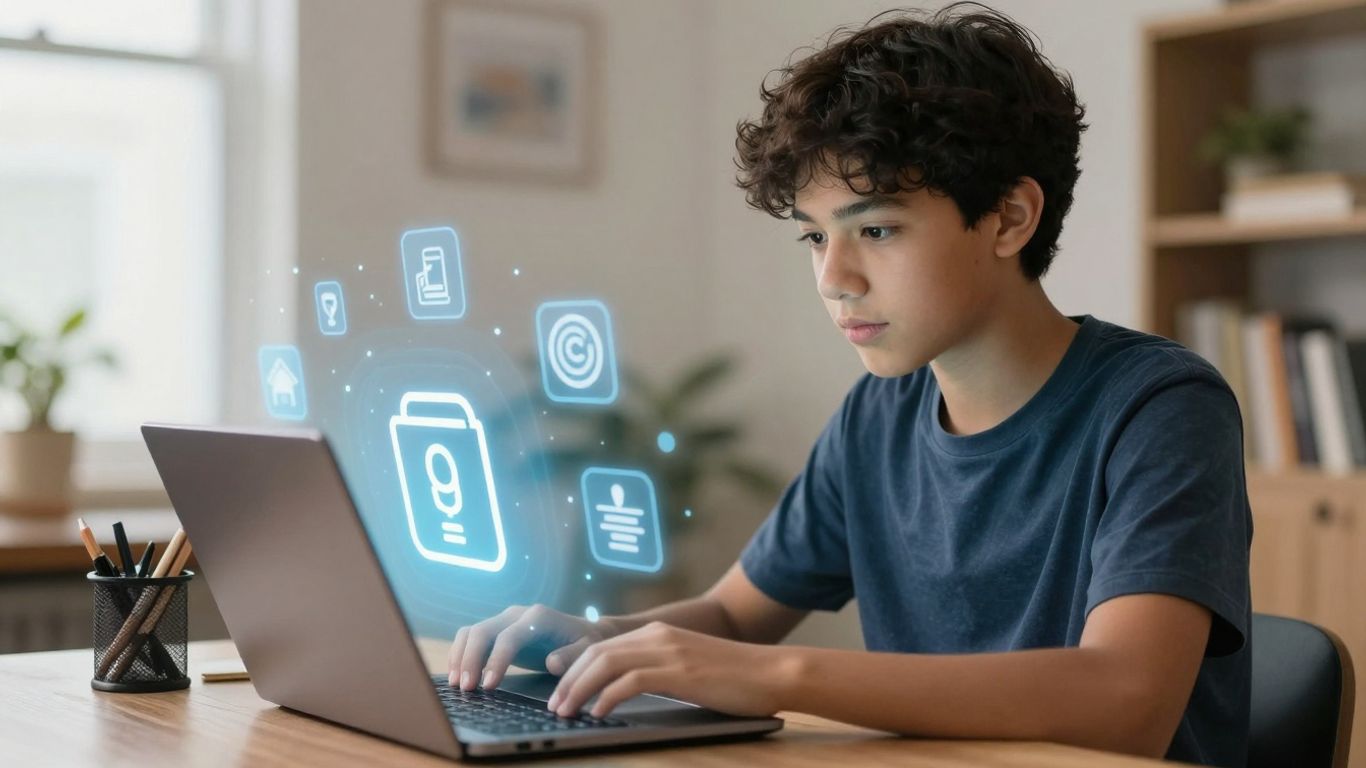
Being smart about what you do online is just as important as locking your dorm room. It’s about being aware of your surroundings, even when those surroundings are digital. Think of it like walking across campus – you wouldn’t just wander into any building or leave your backpack unattended, right? The internet is kind of the same way.
Limiting Information Shared on Social Media
Social media is great for keeping up with friends, but it can also be a goldmine for people who want to cause trouble. Sharing too much, like when you’re going on vacation or even just when you’re not home, can make you a target. It’s like putting up a "free stuff" sign for potential burglars. Always check your privacy settings regularly. Make sure only people you actually know can see what you’re posting. Think about what you’re sharing before you hit ‘post’. Does this really need to be public?
Exercising Caution on Public Wi-Fi Networks
Free Wi-Fi at the coffee shop or library sounds convenient, but it’s often not very secure. These networks are like open doors for hackers. If you’re logging into your bank account, checking grades, or doing anything that involves personal information, it’s best to avoid public Wi-Fi. Use your phone’s data or wait until you’re on a trusted network at home or on campus. If you absolutely must use public Wi-Fi, consider using a VPN, which adds a layer of protection to your connection.
Shopping Securely Online
Online shopping is super easy, but it comes with risks. Always look for the little lock symbol next to the website address – that means the connection is encrypted and safer. When you’re ready to pay, use a credit card instead of a debit card if possible. Credit cards often have better fraud protection. Also, stick to well-known, reputable websites. If a deal seems too good to be true, it probably is. Don’t get caught out by fake sites trying to steal your payment details.
Your online actions have real-world consequences. Treat your digital life with the same care you would your physical belongings and personal safety. A little bit of caution goes a long way in preventing headaches down the line.
Responsible Use of Technology
Being smart about how you use technology goes beyond just keeping your accounts secure. It’s about being mindful of your actions and how they can affect you and others. Think of it as being a good digital citizen.
Understanding and Adhering to AI Guidelines
Artificial intelligence tools are popping up everywhere, and they can be super helpful for schoolwork. But, you’ve got to know the rules. Different professors and even departments have their own policies on using AI. Always check what’s allowed before you submit anything. Using AI to brainstorm ideas or get an outline is usually fine, but copying and pasting entire assignments is a no-go. Plus, be careful what you share with AI programs; they might use that info later. Treat AI like you would social media – share with caution.
Seeking Assistance from University IT Departments
Your university’s IT department is there to help you. Seriously. If you’re struggling with software, think you might have clicked on something sketchy, or just feel confused about a tech issue, don’t hesitate to reach out. They’ve got the know-how to sort things out, often much better than a quick internet search. Reporting suspicious activity also helps them keep everyone safer.
Maintaining a Clean Digital Footprint
What you put online can stick around for a long time, even after you graduate. It’s not about going completely offline, but it is about being thoughtful.
- Review your social media privacy settings regularly. Make sure only people you actually know can see your posts.
- Do a quick search for yourself online to see what information is out there.
- Delete old accounts you don’t use anymore. They can sometimes be a weak spot.
Think about your online presence like your resume. You want it to show you in the best light, not give potential employers or others a reason to worry. Be intentional about what you share and how you present yourself online.
Wrapping Up: Stay Safe Out There!
Look, staying safe online isn’t rocket science, but it does take a little effort. You’re juggling classes, maybe a job, and trying to have some fun, so it’s easy to let things like software updates slide or reuse that old password. But remember, those little things can open the door for some serious headaches down the road. Think of it like locking your dorm room door – you just do it without thinking. Try to make these cybersecurity habits just as automatic. Your school’s IT department is there to help, so don’t be afraid to ask if you’re unsure about something. By taking these simple steps, you can protect your personal stuff, your grades, and your peace of mind. Go forth and study smart, but more importantly, study safe!
Frequently Asked Questions
Why are strong, unique passwords so important?
Think of passwords like keys to your different rooms. If you use the same key for your bedroom, your locker, and your diary, and someone gets that one key, they can get into all of them! Using different, strong passwords for each online account means that if one gets stolen, your other accounts are still safe. It’s like having a different, super-tough lock on every door.
What is multi-factor authentication (MFA) and why should I use it?
MFA is like having a second lock on your door that only you have the key for. Usually, it means you need your password AND something else, like a code sent to your phone, to log in. This makes it way harder for hackers to get into your accounts, even if they somehow steal your password.
How can I tell if an email or message is a scam?
Scammers often try to trick you by making messages look real. Watch out for emails or texts that create a sense of urgency, like saying you’ll lose access to something if you don’t act fast. Also, look for bad spelling or grammar. If a message asks for personal info or money, or seems too good to be true, it’s probably a scam. Always double-check the sender’s address – a real school email won’t come from a free email service.
Is it safe to use public Wi-Fi at coffee shops or airports?
Public Wi-Fi can be risky because it’s often not secure. This means someone else on the same network could potentially see what you’re doing online, like logging into your bank account. It’s best to avoid doing anything sensitive, like online banking or shopping, on public Wi-Fi. Use your phone’s data or wait until you’re on a secure network.
Why is it important to keep my software and devices updated?
Software updates often include fixes for security weaknesses that hackers could exploit. When you ignore an update, you’re leaving a door open for them. Regularly updating your phone, laptop, and apps is like patching up holes in your digital defenses.
What should I do if I think I’ve been hacked or clicked on a bad link?
Don’t panic! The first thing to do is change your passwords for any accounts that might be affected. If you clicked on a suspicious link or downloaded something strange, run a virus scan on your device. If you’re unsure or think your school accounts might be compromised, contact your university’s IT help desk immediately. They are there to help you sort things out.